🚀 Session 1
Introduction to Vibe Coding
+ Your First AI-Generated Project
AI-Assisted Vibe Coding for Real-Life Problem Solving
📋 Today's Agenda
- What is "Vibe Coding"? (10 min)
- How AI Assists Coding (10 min)
- Meet Claude Code (10 min)
- Hands-On: Build Your First Project (20 min)
- Add AI-Generated Images (10 min)
🎯 Learning Outcomes
By the end of this session, you will:
- Understand what vibe coding is
- Learn how AI assists coding
- Generate and edit simple code with Claude Code
- Build confidence through immediate success
🎨 Part 1
What is Vibe Coding?
Traditional Coding vs Vibe Coding
Traditional 😰
- Memorize syntax
- Learn frameworks
- Debug for hours
- Read documentation
Vibe Coding 😊
- Describe what you want
- AI generates code
- Iterate & refine
- Focus on ideas
The Vibe Coding Philosophy
"You don't need to know everything.
You just need to know how to ask."
AI is your coding partner, not a replacement for thinking.
Who Is This For?
- ✅ People who want to build useful tools
- ✅ People who understand logic but not syntax
- ✅ Anyone curious about making things with code
- ✅ YOU!
🤖 Part 2
How AI Assists Coding
AI Can Help You...
- 📝 Generate code from descriptions
- 🔧 Fix errors and bugs
- 📖 Explain how code works
- 💡 Suggest improvements
- 🎨 Create designs and layouts
The AI Coding Loop
Good Prompts = Good Results
❌ Bad: "Make a website"
✅ Good: "Create a simple HTML page with a blue header that says 'Welcome to My Site' and a paragraph introducing myself"
Tips for Better Prompts
- Be specific about what you want
- Mention colors, sizes, positions
- Give examples if helpful
- Ask one thing at a time
- Don't be afraid to ask follow-up questions!
👋 Part 3
Meet Claude Code
What is Claude?
- AI assistant created by Anthropic
- Excellent at writing and explaining code
- Free to use on the web
- Great for beginners!
Claude Interface Tour
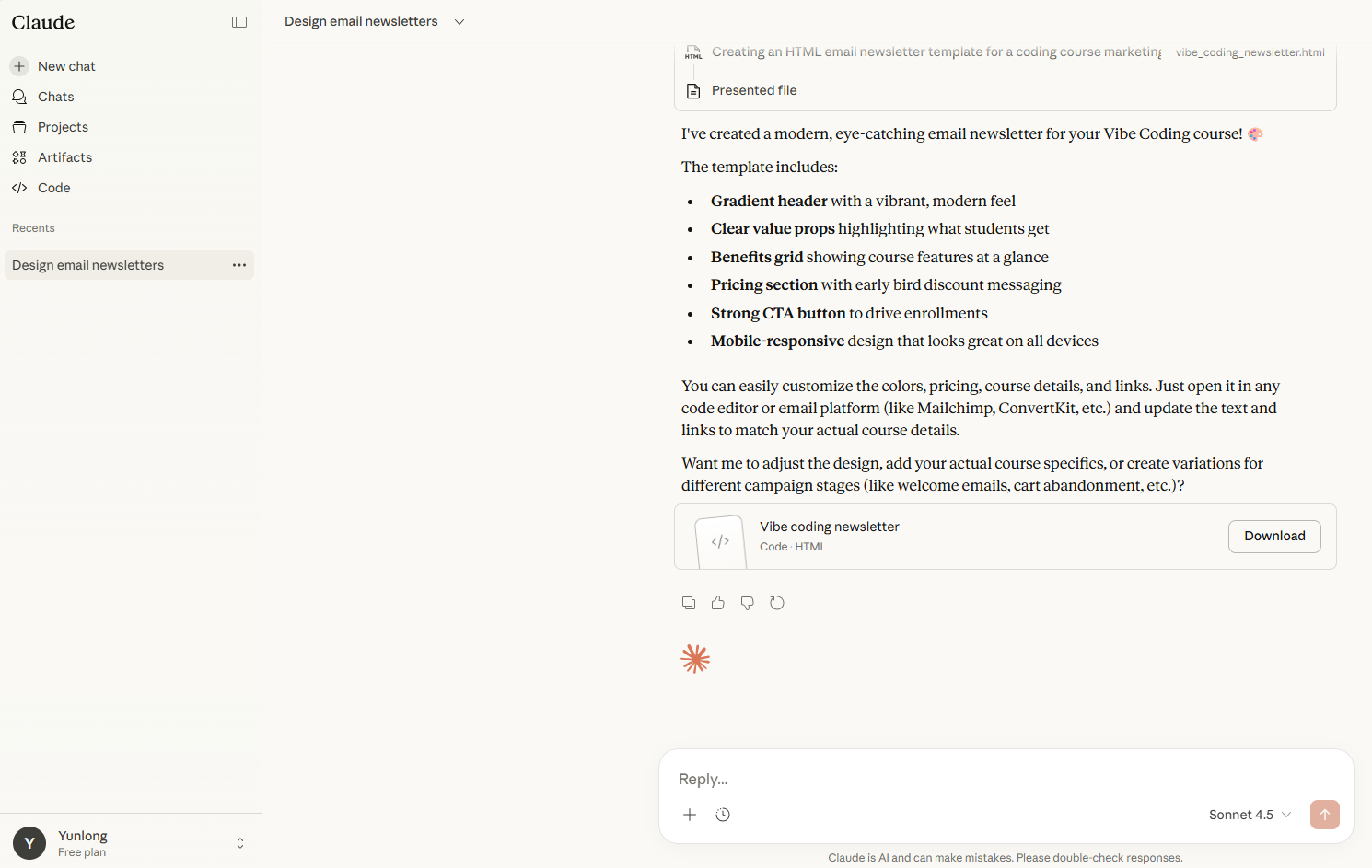
- Chat interface — type your requests
- Code blocks — formatted code you can copy
- Artifacts — preview HTML/websites live
- History — your past conversations
🔴 Live Demo
Let's try Claude together!
Create a simple HTML page that says
'Hello, World!' in big blue letters centered on the page.
Add a fun emoji too.Demo Result
💡 Pro Tip: Notice how Claude shows a live preview of your HTML on the right side!
🛠️ Part 4
Hands-On: Your First Project
Build an HTML Marketing Email or Event Flyer
Project Options
📧 Marketing Email
- Header with logo/title
- Main message
- Call-to-action button
- Footer
🎉 Event Flyer
- Event name & date
- Description
- Location info
- RSVP details
📖 Step 1: Choose Your Project
Pick one of these options (or create your own!):
- 🎂 Birthday party invitation
- 🏫 School event announcement
- 🍳 Family recipe card
- 📣 Club/group newsletter
- 🎪 Weekend activity flyer
📝 Step 2: Write Your Prompt
Copy this template and customize it:
Create an HTML email template for a kids' birthday party.

Include:
- A colorful header with "You're Invited!" text
- Party details: Saturday March 15th, 2-5 PM
- Location: 123 Fun Street, Playground Room
- A fun description about games and cake
- An RSVP button that says "Count me in!"
- Use bright, cheerful colors (pink, blue, yellow)
- Add some fun emojisAlternative Prompts
School Event:
Create an HTML flyer for a school science fair.
Date: April 20th, 6-8 PM
Location: School Gymnasium
Include: event description, what to expect, contact info
Use professional but fun colors (blue and green)
Add a science emoji theme🚀 Step 3: Generate in Claude
- Go to claude.ai
- Paste your customized prompt
- Press Enter and watch the magic!
🔍 Step 4: Review the Output
Look at what Claude created. Ask yourself:
- ✅ Does it look right?
- ✅ Is anything missing?
- ✅ Do you like the colors?
- ✅ Is the text correct?
💡 Remember: It's okay if it's not perfect! That's what Step 5 is for.
✨ Step 5: Refine with Follow-ups
Ask Claude to make changes! Try these:
Make the header bigger and add a fun gradient backgroundChange the RSVP button to green and make it rounderAdd more party emojis and make it look more festiveMore Refinement Ideas
| Want to... | Say this... |
|---|---|
| Change colors | "Use a blue and white color scheme" |
| Resize text | "Make the title 50% bigger" |
| Add sections | "Add a section for 'What to Bring'" |
| Change layout | "Put the details in two columns" |
| Add images | "Add a placeholder for a photo at the top" |
💾 Step 6: Save Your Work
- In Claude, find the code block with your HTML
- Click the Copy button in the top-right
- Open Notepad (Windows) or TextEdit (Mac)
- Paste the code (Ctrl+V / Cmd+V)
- Save as
my-project.html
⏱️ Activity Time!
15 minutes
- Open Claude at claude.ai
- Create your own email or flyer
- Refine it with at least 3 follow-up requests
- Save the HTML code to your computer
🙋 Need help? Raise your hand! I'll come to you.
🌟 Show & Tell
Let's see what everyone created!
- Who wants to share their screen?
- Tell us: What did you make?
- What's your favorite part?
🎨 Part 5
Adding AI-Generated Images
Free AI Image Tools
| Tool | Best For | Free Tier |
|---|---|---|
| Playground | General images | 100/day |
| Ideogram | Text in images | 25/day |
| MS Designer | Social graphics | 15/day |
| Canva | Templates + images | Limited |
Tips for Image Prompts
- Describe the style (cartoon, realistic, flat)
- Mention colors you want
- Specify the subject clearly
- Add "on white background" for easy placement
A cartoon birthday cake with colorful candles and
confetti, flat design style, bright cheerful colors,
on white backgroundMore Image Prompt Examples
A friendly robot waving hello, cute and simple,
blue and silver colors, cartoon styleScience fair poster banner with beakers, atoms,
and microscopes, educational style, green and blue themeDelicious chocolate chip cookies on a plate,
warm and cozy feeling, food photography styleAdding Images to Your HTML
Ask Claude to add an image placeholder:
Add an image placeholder at the top where I can put
my party image. Make it centered and 400px wide with
a nice border.
📝 Note: We'll learn how to properly add your images in Session 2!
⏱️ Quick Activity
5 minutes
- Go to Playground AI
- Generate an image for your flyer/email
- Download it to your computer
- Save it in the same folder as your HTML file
📝 Session Wrap-up
What We Learned Today
- ✅ Vibe Coding = Describing what you want
- ✅ AI is a coding partner
- ✅ Good prompts = good results
- ✅ Claude can generate HTML
- ✅ AI can also create images!
Key Takeaways
- You don't need to memorize code
- Be specific in your prompts
- Iterate and refine
- Have fun experimenting!
📚 Homework
- Create another HTML page (recipe card, announcement, etc.)
- Generate at least 2 AI images
- Try asking Claude to explain how the code works
🌟 Bonus: Try opening your saved .html file in a browser and show it to a family member!
Bring your creations to share next week!
🔜 Next Session Preview
Session 2: HTML Foundations Through AI
- Deeper dive into HTML structure
- Learn to ask AI for specific edits
- Build a personal introduction webpage
- Add images properly!
❓ Questions?
Let's discuss!
Remember: There are no silly questions in vibe coding!
🙏 Thank You!
See you next session!
Session 1 of 16 | AI-Assisted Vibe Coding Course